

![How to Force-Enable Claude Opus 4.6 [1M] Context with a Max Subscription](https://netstatz.b-cdn.net/wp-content/uploads/2026/07/cover-force-enable-1m-context.jpg)
Opus 4.6 [1m]
A quick HOWTO on Max 5x enablement
How to Force-Enable Claude Opus 4.6 [1M] Context with a Max Subscription
Topic: Claude CLI, Opus 4.6, Large Context Windows
The last month has been a never-ending drop of new models and AI tools. With the release of Claude Opus 4.6 and Codex 5.3, my week has been a balancing act of managing daily limits and burning context on planning, delegation, and sub-agent tasks.
The goal is always autonomous productivity, but context limits are the bottleneck. Even with “TOON efficient context” (despite Opus 4.6 missing the Nov 2025 standard), the 200k limit forces a massive pre-commit effort to keep iterations on track. The “ballooning crater of YAML frontmatter” from daily skill evolution makes it worse.
Enter the 1 Million Token Context Window.
If you are a Max Subscription user like me, you might have noticed that while Opus 4.6 arrived, the 1M context window did not. After some troubleshooting with a friend (who had it working on a 20x sub), I discovered a workaround. It seems the 1M capability requires a “signal” from the API side to unlock for the subscription side.
Here is the one-shot process to get it working.
Update: This loophole is closed! New sessions with 1M selected going to API Error 400; Existing sessions ending full stop. I guess it is just limited to some 20x Max Users
The TL;DR Summary
-
Platform Login: Log into
platform.claude.comwith your standard email. -
Add Funds: Purchase a small amount of API credits
-
Verify: Execute a
curlcommand to confirm the 1M model works via API. -
CLI API Login: Log into the Claude CLI using the API key (not the subscription).
-
Switch Back: Log out, then log back in using your Max Subscription.
-
Success: The
/model opus[1m]command should now be valid.
Step-by-Step Guide
1. The Pre-Requisites
First, acknowledge the frustration. Until today, selecting /model opus[1m] likely resulted in an immediate rejection or error. A few days ago you could even select the model, teasing functionality and sending people to look at open issues on github.

To fix this, go to platform.claude.com. Log in with the same email you use for your generic claude.ai account. You need to verify you have active API credits. I had over $25, but a smaller amount may work. I created a new key to test with.

2. Test the API Access
We need to confirm the backend allows your account to access the model. Create a simple script or run the following curl command.
Note: If you are in a project folder, you can add your ANTHROPIC_API_KEY to your .env file first.
curl https://api.anthropic.com/v1/messages \
  -H "x-api-key: $ANTHROPIC_API_KEY" \
  -H "anthropic-version: 2023-06-01" \
  -H "anthropic-beta: context-1m-2025-08-07" \
  -H "content-type: application/json" \
  -d '{
    "model": "claude-opus-4-6",
    "max_tokens": 1024,
    "messages": [
      {"role": "user", "content": "Process this giant context please..."}
    ]
  }'
If this returns a successful JSON response rather than an error, your API account is ready.
3. The “API Login” Switcheroo
This is the critical step.
-
Open a terminal in a fresh directory (one without a
.claudefolder). -
Run the login command for the Claude CLI.
-
Crucial: Select API Login instead of the Max Subscription login.
-
Once logged in, verify your status using
/status. My client flashed a brief message informing about the use of API funds.
Note: You don’t need to perform actual work here; we are just establishing the session.

4. Return to Max Subscription
Now that the “handshake” has occurred via the API login:
-
Exit the API session.
-
Return to your main project folder.
-
Logout of your current CLI session and Exit.
-
Reload and Login again—this time, select your Max Subscription.
5. Verify 1M Access
Type the following command:
/model opus[1m]
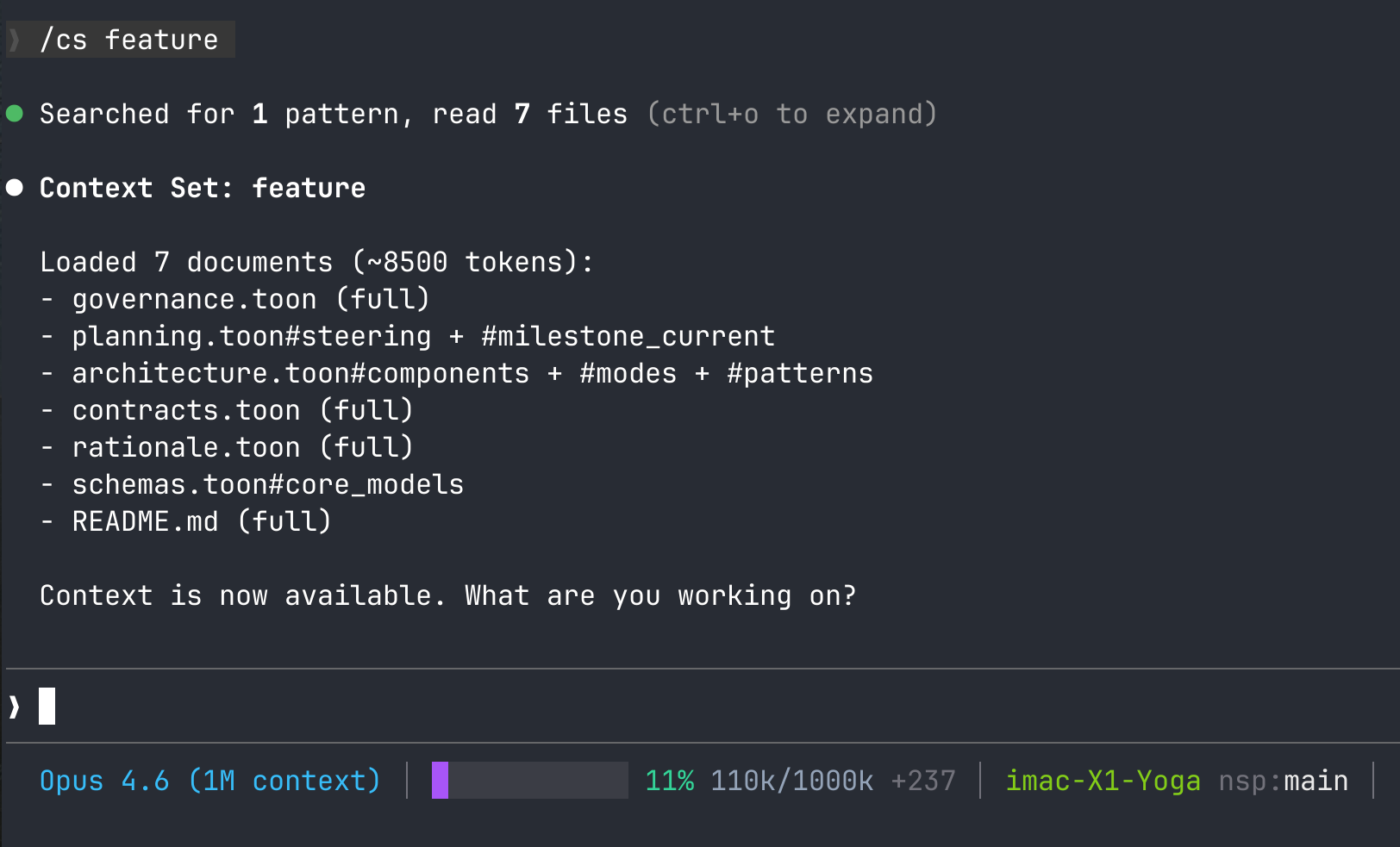
It should now accept the model change without error.
Conclusion
I haven’t bisected exactly why this works—whether it’s the $25 spend or simply the act of logging in via API—but this process successfully triggered the availability of the 1M context window on my Linux client (v2.1.38).
Hopefully, this saves you from the token-limit loop. Now, back to tinkering with agent teams.
